> ## Documentation Index
> Fetch the complete documentation index at: https://docs.ergomake.dev/llms.txt
> Use this file to discover all available pages before exploring further.
# Troubleshooting
> How to resolve common problems with your environments.
In this page, you'll learn how to troubleshoot common problems with your environment.
## Ensure your `docker-compose.yml` file is valid
If your `docker-compose.yml` file is invalid, Ergomake won't be able to start building your images or spin up your environment.
To avoid problems with invalid files, make sure you can run `docker-compose up` successfully in your machine.
Start with the simplest possible `docker-compose.yml` file.
**Avoid `volumes`, `networks`, or any advanced features, like `depends_on`. These are usually unnecessary and confusing**.
## Check your build logs
As Ergomake builds your application, you can click the `Details` link on GitHub to see any build logs you may have.
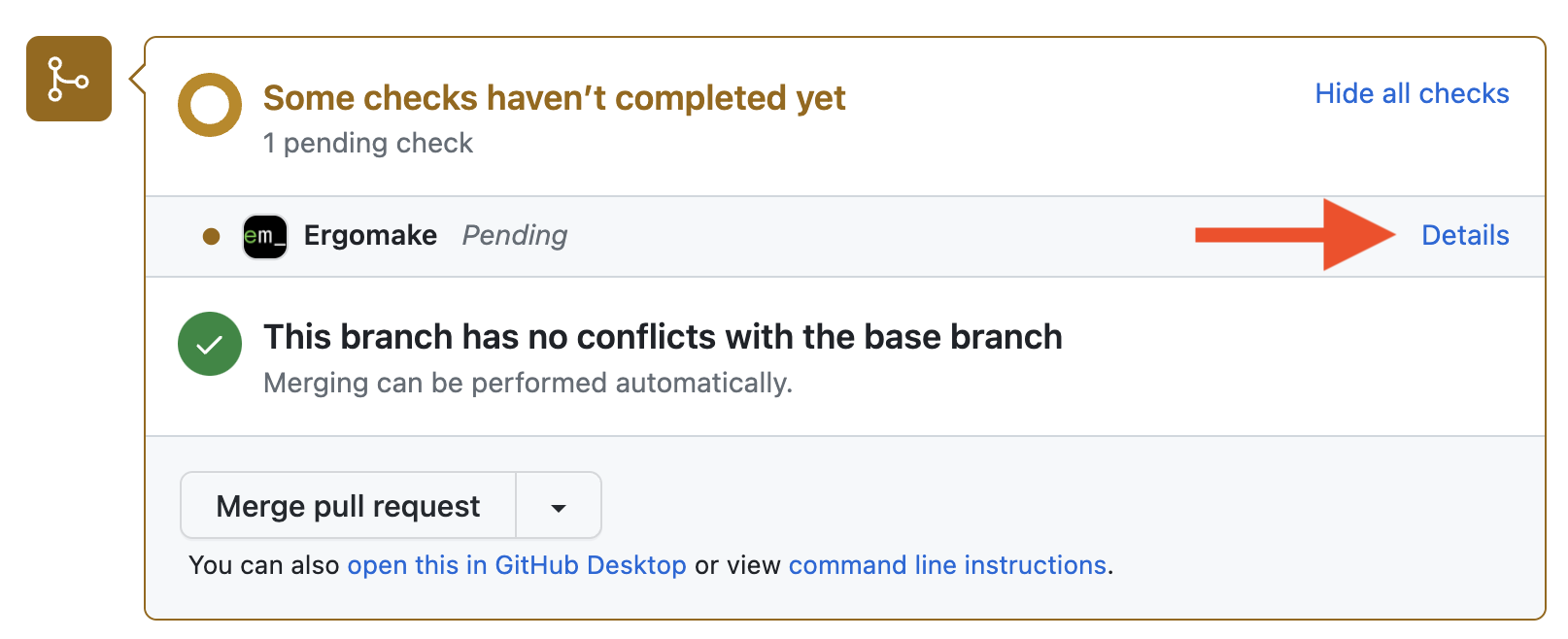
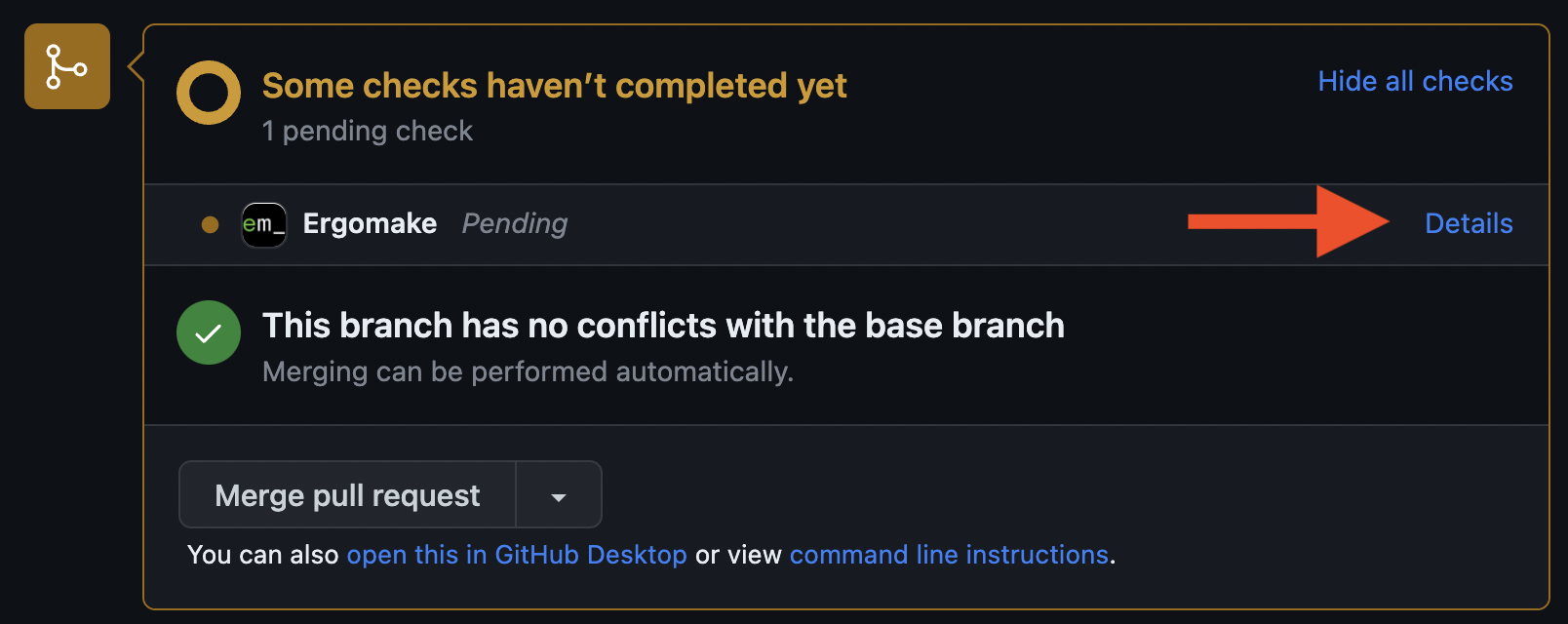 For any images being built by Ergomake, you'll have complete build logs.
There, you can check whether there's any failure related to building your `Dockerfile`.
For any images being built by Ergomake, you'll have complete build logs.
There, you can check whether there's any failure related to building your `Dockerfile`.
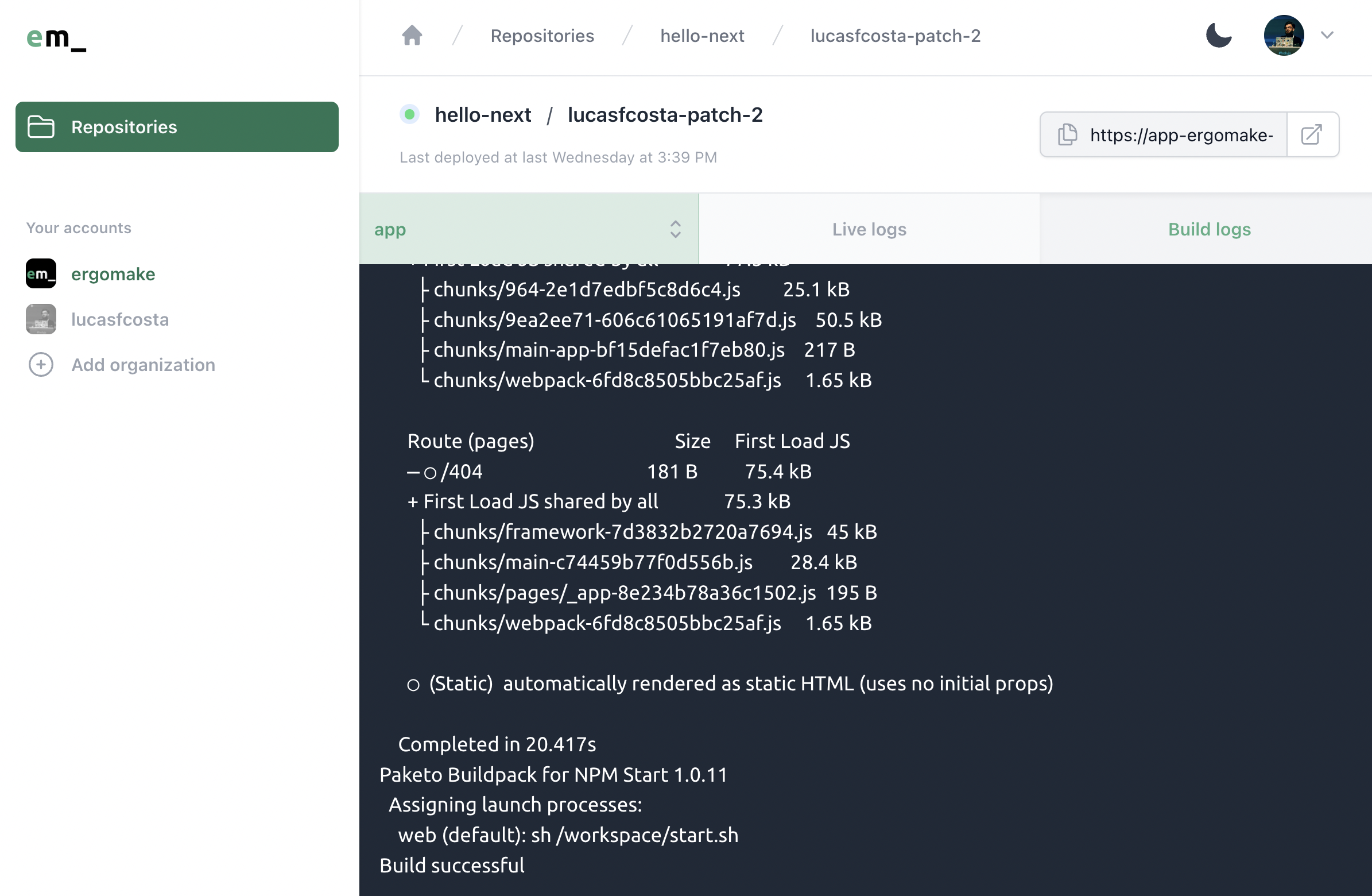
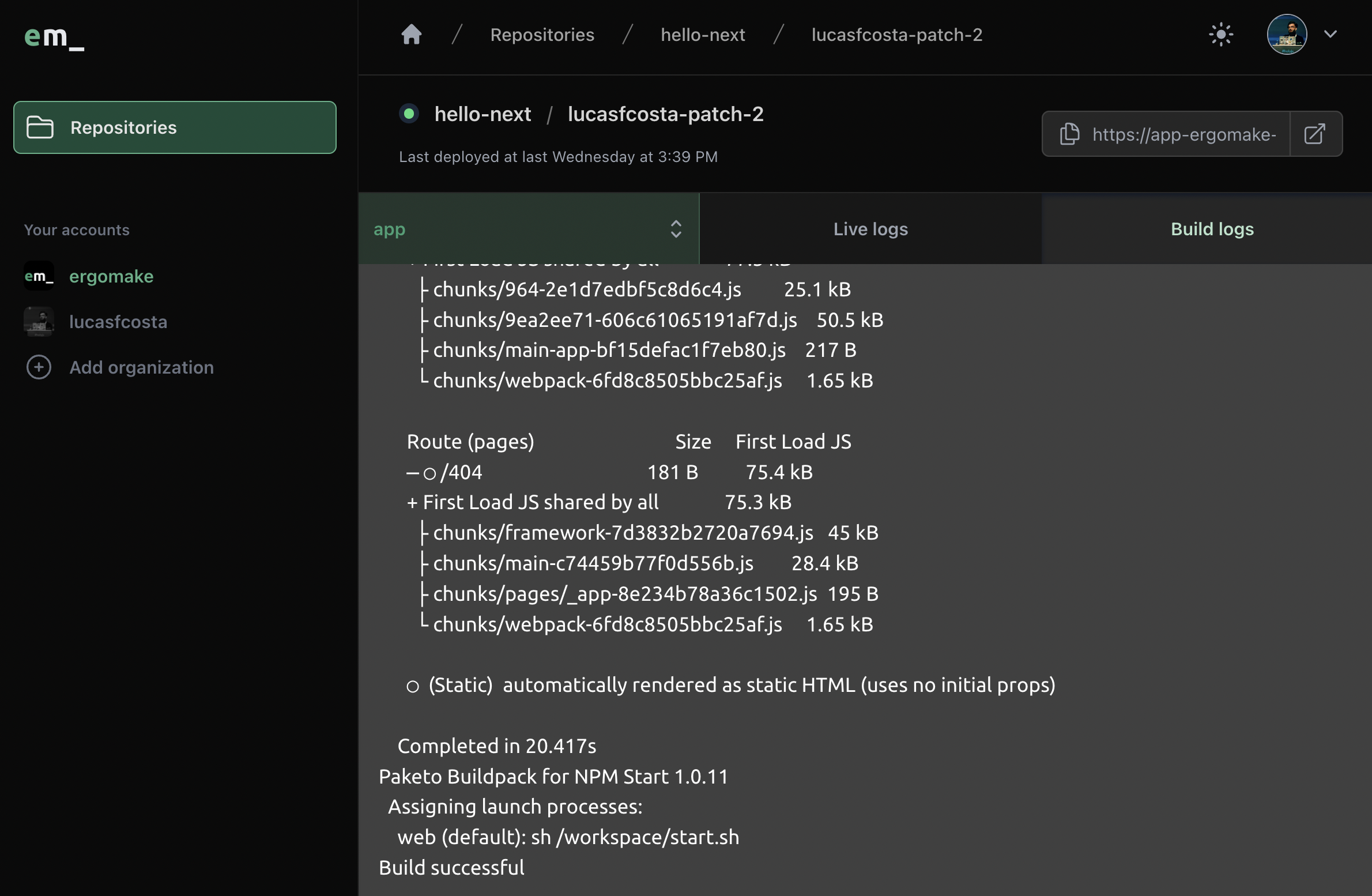 Build failures are usually due to builds consuming too much memory or missing files which may exist on your machine, but that haven't been committed to GitHub.
It may also be the case that you're missing [environment variables](/configurations/environment-variables) in your build.
## Check your runtime logs
Once your Dockerfiles are built, Ergomake will start your applications. To see your application's runtime logs, click the `Live` button on the details panel for your environment, which you'll find by logging into [the Ergomake dashboard](https://app.ergomake.dev).
Runtime failures are usually due to missing environment variables or misconfigured initialization or seed scripts, which may be causing the container to fail every time it tries to restart.
If your application consumes memory beyond what's available for your current plan, it may also crash.
## Make sure you haven't misconfigured any environment variables
Double check that the environment variables configured into the dashboard are correct, and that you haven't missed any of them.
## Ensure you're not using `localhost` addresses
Sometimes your `docker-compose.yml` file may work on your machine but not on Ergomake. When that happens, most of the time it's due to services trying to talk to each other through `localhost`, which is available on your machine, but not on Ergomake.
You should *always* use services' names as hostnames for applications to talk to each other.
## Need help? Talk to us.
We can help you troubleshoot and set Ergomake up, regardless of your plan.
For help, send us an email at [contact@ergomake.dev](mailto:contact@ergomake.dev) or [join Discord](https://discord.gg/daGzchUGDt).
Build failures are usually due to builds consuming too much memory or missing files which may exist on your machine, but that haven't been committed to GitHub.
It may also be the case that you're missing [environment variables](/configurations/environment-variables) in your build.
## Check your runtime logs
Once your Dockerfiles are built, Ergomake will start your applications. To see your application's runtime logs, click the `Live` button on the details panel for your environment, which you'll find by logging into [the Ergomake dashboard](https://app.ergomake.dev).
Runtime failures are usually due to missing environment variables or misconfigured initialization or seed scripts, which may be causing the container to fail every time it tries to restart.
If your application consumes memory beyond what's available for your current plan, it may also crash.
## Make sure you haven't misconfigured any environment variables
Double check that the environment variables configured into the dashboard are correct, and that you haven't missed any of them.
## Ensure you're not using `localhost` addresses
Sometimes your `docker-compose.yml` file may work on your machine but not on Ergomake. When that happens, most of the time it's due to services trying to talk to each other through `localhost`, which is available on your machine, but not on Ergomake.
You should *always* use services' names as hostnames for applications to talk to each other.
## Need help? Talk to us.
We can help you troubleshoot and set Ergomake up, regardless of your plan.
For help, send us an email at [contact@ergomake.dev](mailto:contact@ergomake.dev) or [join Discord](https://discord.gg/daGzchUGDt).